Set up your workspace: sites, legal entity and the work week
Set the company that employs your people, add each work site with its state, and say which days are worked, off or half. Professional tax, holidays and payroll all read these.
Who can do thisOwners and HR. Adding or editing a company needs compensation rights; sites and weeks need the right to edit employee records.
On this page
Before you start
- Have each company's registered name, registration number, tax id (such as the TAN) and registered address to hand.
- List your work locations with the state each one is in: the state decides professional tax, the welfare fund and the holiday calendar.
Steps
Step 1: Check the company that employs your people
Open Settings, then the Workspace tab. The Companies card already has one company, made from your workspace's name, country, currency and timezone. Choose Edit to add its registered name, Registration number, Tax id and Registered address, then Save company.
If you employ people through more than one company, choose + Add a company; Make default picks the one new people join. While there is only one company, changing the workspace's country, currency or timezone keeps it in step.
Step 2: Add your work sites
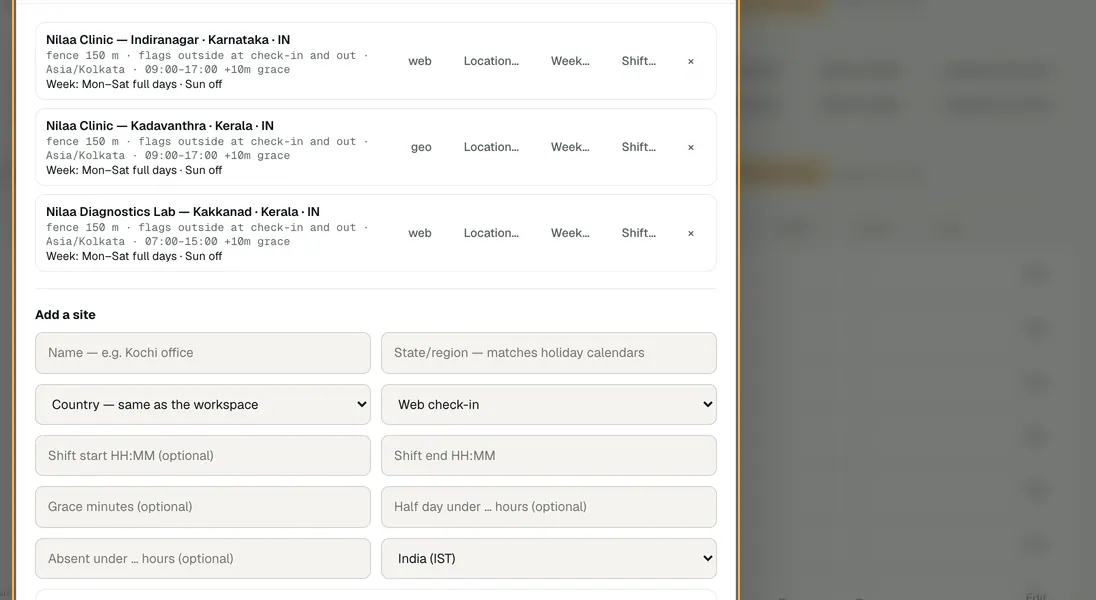
Go to People Ops › Attendance and choose Work sites…. In Add a site, give the name and the state or region, the country and timezone, and how people punch: Web check-in, Geo check-in or Roster (marked by HR). A shift is optional; leave it blank if the site has no fixed hours. Choose + Add site.
Set the name, state and timezone carefully: they can't be edited after the site is added. Removing a site keeps its people's punches; they lose its weekly offs, holidays and fence until you give them another site.
Step 3: Make a week
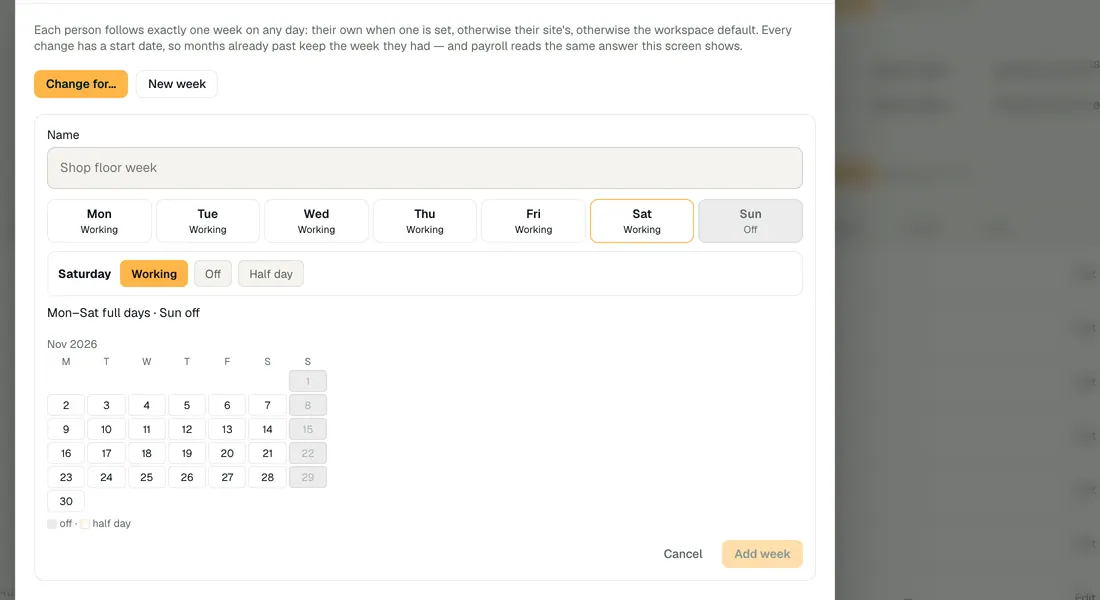
On Attendance, choose Weeks…, then New week. Name it and tap each day to cycle it through Working, Off and Half day. An off day can be off every week or only on chosen weeks of the month (the 1st to the 5th), which is how alternate Saturdays work. A half day is set as a time or a number of hours. Choose Add week.
Step 4: Give the week to the workspace, a site or people
Choose Change for…. Pick who it is for (people, sites or the workspace default), the week, and the day it starts from, then Preview who changes and Confirm change.
Each person follows exactly one week on any day: their own when one is set, otherwise their site's, otherwise the workspace default. Days before the start keep the week they had, and days a pay run has already counted can't change.
Step 5: Put each person at their site
When you add or edit an employee, choose their Work site. You can add a missing site from the same form with + Add a work site.


Demo workspace · fictional clinic group
What to check
- The Work sites list shows each site's state, timezone, shift and week.
- In Weeks…, Workspace default names a week, and People with their own week lists only the people you meant.
- Every person's profile shows their site and the week they follow; Why? next to it says where it comes from.
Last reviewed
Try it on the demo workspace
We walk you through it on a workspace with fictional people, then set up yours with you.
Book a demo