Import your roster and salaries from CSV
Bring your people in from a CSV with a preview of every row before anything is added, then bring in their monthly salaries and the leave they carry in from a second file.
Who can do thisOwners and HR (the right to edit employee records). Carried-in leave balances also need leave-approval rights.
On this page
Before you start
- Add your companies and work sites first, so the import can put people at them.
- Export your people from your old system or spreadsheet as CSV (from Excel, save as CSV UTF-8). Files over 2 MB are refused: split them.
Steps
Step 1: Download the template
Go to People Ops › Employees and choose Import CSV. Download template gives the columns GrowthPPL reads. Only Name is required (or first and last name); add the work email so a second import knows who is already here, and each manager's name to build the org chart.
PAN, UAN and bank account numbers can come in too; they are sealed when stored. One file takes up to 1,000 people.
Step 2: Choose your file and match its columns
Choose Choose a CSV…. Columns can be in any order, and header spelling is loose. If a column isn't one GrowthPPL knows, Match your columns asks what each one is; set any you don't want to Don't import, then Continue →.
Step 3: Read the preview
Import preview shows every row and what will happen to it: added, already here, repeated in the file, or skipped. Before you import lists each problem by row, such as a missing name, an employee code someone already has, or a manager who matches nobody; Copy list copies it so you can fix the file.
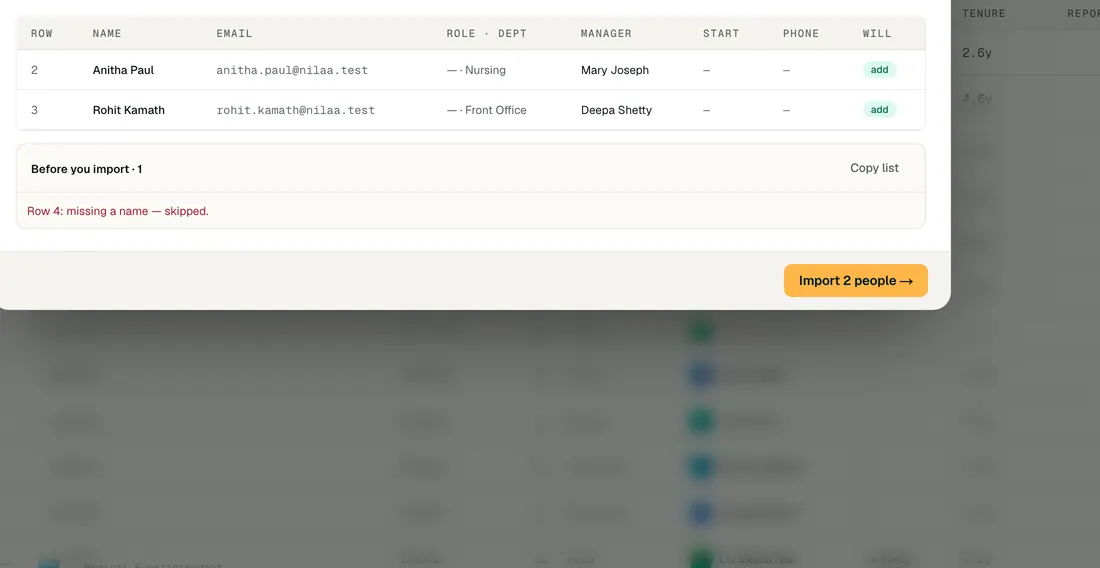
Step 4: Import the people
Choose Import (the button names how many people). Import finished says how many were added and lists anything to look at. New people get your leave policy's opening balances, and anyone with a future start date is marked as joining.
If the file would take you past the employees your plan covers, the whole file is refused and says how many more can join.
Step 5: Bring in salaries and carried-in leave
Open Settings › Data import. In Salaries and leave balances, Download template: it matches people by employee code or email, with their monthly salary (or a column for each salary component, which must add up to it), the day it starts, their company and site, and an opening column for each leave type.
Choose Choose a CSV, read the preview of every change, then Apply (the button names how many people). One file takes up to 2,000 rows.
Step 6: Change pay later with the salary sheet
Once everyone is in, change many people's pay at once with the bulk salary sheet: download, edit, upload, check the preview and apply.
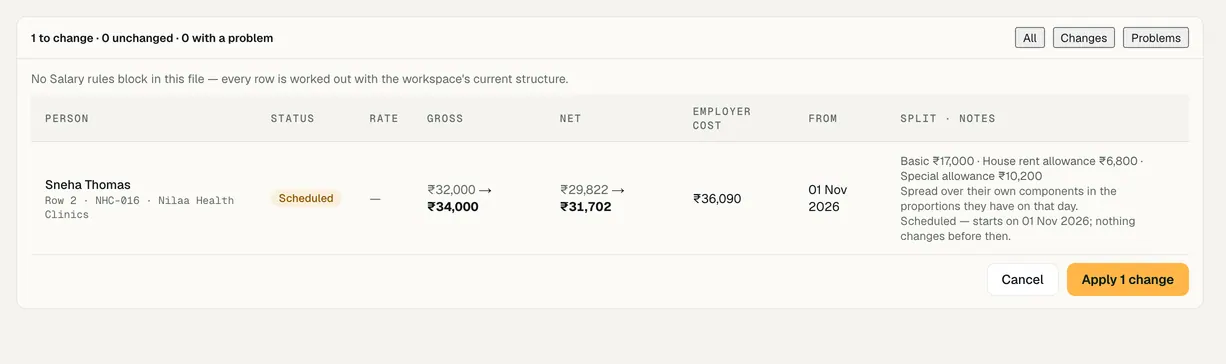


Demo workspace · fictional clinic group
What to check
- The employee count on Employees matches your file, less the rows the preview skipped.
- The org chart shows each person under their manager; anyone at the top without a manager was named in To look at.
- A person's profile shows their salary and their carried-in leave on top of this year's accrual.
Last reviewed
Try it on the demo workspace
We walk you through it on a workspace with fictional people, then set up yours with you.
Book a demo