Set up geo check-in for each site
Give a site a centre and a radius you set, decide whether a punch from outside is refused or recorded and flagged, and see what employees see when they check in on their phone.
Who can do thisOwners and HR (the right to edit employee records) set up sites and fences. Employees check in for themselves.
On this page
Before you start
- The site exists under Attendance › Work sites… (see setting up your workspace).
- Employees sign in on their phone's browser and allow it to share their location when it asks.
Steps
Step 1: Switch the site to geo check-in
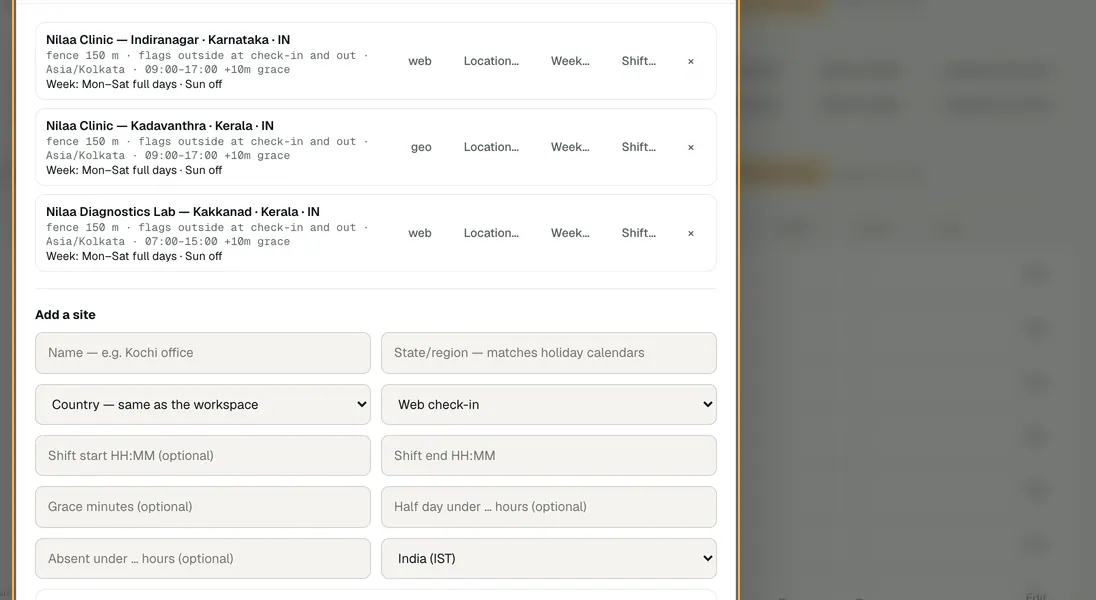
On Attendance, choose Work sites…. Each site's punch-mode button cycles web, geo and roster; choose it until it reads geo. A new site can start as Geo check-in.
Step 2: Set the site's centre
Choose Location… on the site. Standing at the site, choose Use my current location; or paste a Google Maps link, or a latitude and longitude, into the box. Check on Google Maps shows the pin it read.
Step 3: Choose the radius and the rule
Drag Radius to the distance you want, from 20 to 2000 m. Phone GPS is usually good to 10–50 m indoors, so a very small fence will catch people standing at the door.
Choose the rule: Outside the fence: record it and flag the day keeps every punch and flags the ones from outside, while Outside the fence: refuse the punch turns them away. Choose whether the fence is checked at check-in and check-out or at check-in only, then Save location.
Step 4: Make exceptions for people who travel
On a person's Edit details, Location when punching can hold them to their site's fence (the default), treat them as field work (their location is recorded and never refused), or not ask for it at all.
Step 5: See what employees see
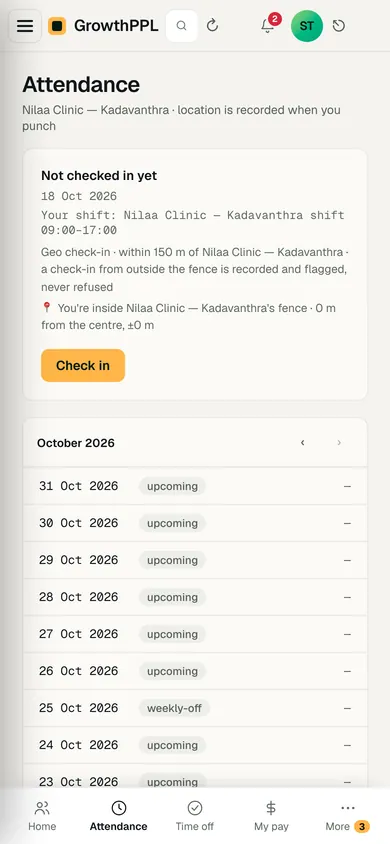
On their phone, the attendance card says the rule in a line, such as that a check-in from outside the fence is refused. Check where I am shows how far they are from the site; then Check in or Check out.
At a refusing site, a punch from outside, or with no location shared, is refused with the distance and the reason, and the person can ask HR to correct their time. At a flagging site the punch is always kept and the day is flagged.


Demo workspace · fictional clinic group
What to check
- The site's row in Work sites shows its fence and the rule, such as refuses outside at check-in.
- Outside the fence… on Attendance lists punches the fence didn't hold and geo punches with no location, with Download CSV.
- The attendance register marks a flagged day, so you can decide it before payroll.
Last reviewed
Try it on the demo workspace
We walk you through it on a workspace with fictional people, then set up yours with you.
Book a demo