Send an offer and have it signed
Send an offer from the candidate's page; they sign it on a one-time link by typing their name. GrowthPPL records the name, the time, the network address and a SHA-256 fingerprint of the terms, which you can check later.
Who can do thisOwners and HR send, revise, withdraw and approve offers (the offer-management right). Editing the workspace's offer letter needs the right to manage documents.
On this page
Before you start
- The candidate needs an email address on their record: the signing link goes there.
- Move them to the Offer stage. Send offer appears on their page at that stage.
Steps
Step 1: Make the offer letter yours, once
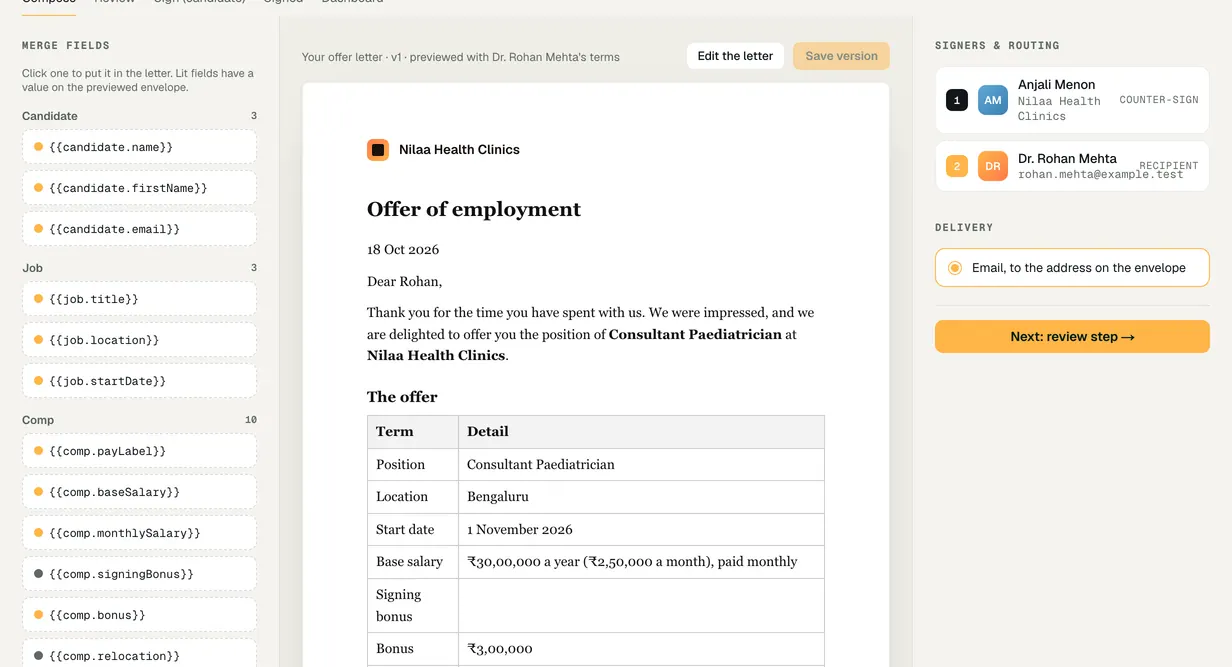
Go to Offers & e-sign and open Compose. Choose Edit the letter, put merge fields such as the candidate's name, the role, the start date and the pay where they belong, and choose Save as our letter (later edits are Save version).
Stepping through the tabs on this screen is a walkthrough and sends nothing. Every offer uses your workspace's latest letter, or the product's starter letter until you save one.
Step 2: Fill in the terms
On the candidate's page, choose Send offer. Step 1 starts blank: title, start date, pay and pay period, location, and any bonus, equity, signing bonus, relocation, benefits and an opening note. Nothing is pre-filled.
Step 2 shows the letter they will sign and warns about any field that would print blank.
Step 3: Send it for signature
On step 3, choose Send for signature →. The candidate is emailed a one-click signing link, and the offer can be accepted for 14 days. The letter is frozen on the offer as it was sent.
Tick Route for approval before sending to have someone else approve it first; it is ticked for you when the pay is above the role's band or budget. Whoever created an offer can't approve it.
Step 4: The candidate signs by typing their name
The link opens the letter and its terms. The candidate types their full name, ticks that their typed name, the time and their network address are recorded as their signature, and chooses Sign the offer. They can also ask a question or decline.
The link works once and expires. You are notified when they sign, and they are emailed the signed copy.
Step 5: Check the signature
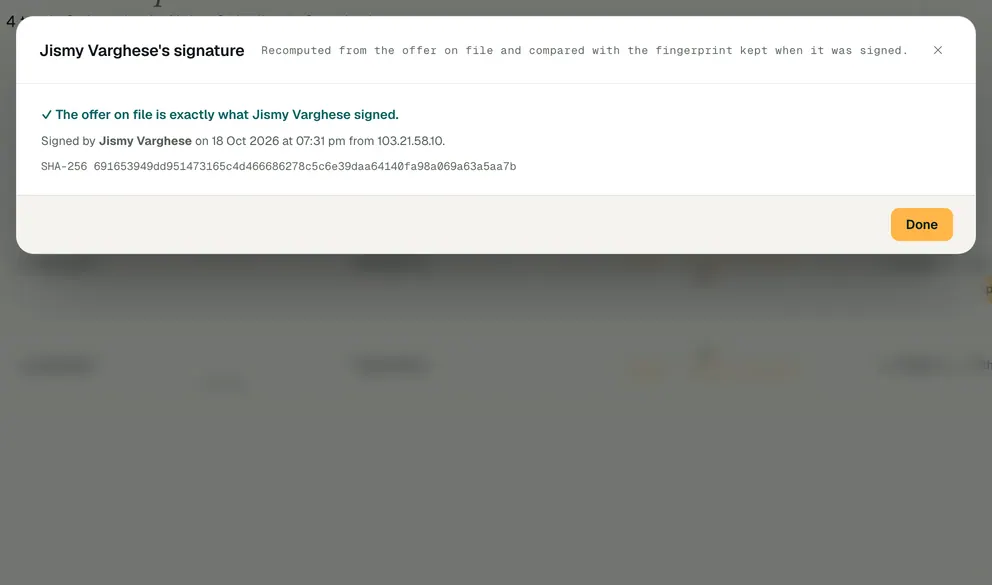
In Offers & e-sign, open Dashboard and choose Check signature on a signed offer. GrowthPPL recomputes the fingerprint from the offer on file and compares it with the one kept at signing, and shows who signed, when, from which address, and the SHA-256 fingerprint.
Step 6: Hire them
Signing doesn't hire anyone on its own. On the candidate's page, choose Mark hired, then Confirm hire →: they join the roster and the onboarding board.


Demo workspace · fictional clinic group
What to check
- The Dashboard shows each offer's status: sent, viewed, signed, declined, expired or withdrawn.
- To change terms after sending, use Revise: the old link stops working. Withdraw stops the link for good and asks why.
- After Mark hired, the new joiner appears on the onboarding board.
Last reviewed
Try it on the demo workspace
We walk you through it on a workspace with fictional people, then set up yours with you.
Book a demo