Run your first payroll in India, and fix a "would be refused" run
Enrol your statutory schemes, read the check GrowthPPL runs before payroll, fix what it names, then run, approve and record the payment. A run that would be refused tells you who and which days before you press anything.
Who can do thisHR (anyone with the right to run payroll) prepares and runs it. The owner, or a role given payroll approval, approves a run when approval is switched on.
On this page
Before you start
- Your employees, their pay and their work sites are in GrowthPPL. Professional tax follows the state set on each person's work site.
- Attendance for the period is recorded, at least for anyone paid a daily or hourly rate.
- Each person's UAN, ESI insurance number and PAN are on their profile, under Compensation › Statutory, so the returns are complete later.
Steps
Step 1: Enrol the schemes that apply
Go to Payroll and open the Statutory tab. It shows the India rule pack and which schemes your roster says you should enrol in. For each one, tick Enrolled, add the registration (PF establishment code, ESI employer code, PT registration for each state, LWF registration, and TAN for TDS) and choose Save.
If nothing is enrolled, a run still goes ahead with no deductions, and says so on the run.
Step 2: Read the check before you run
On the Pay runs tab, Before you run payroll lists what is still open, such as attendance fixes not yet decided or people held from the run. These are reminders and don't stop the run.
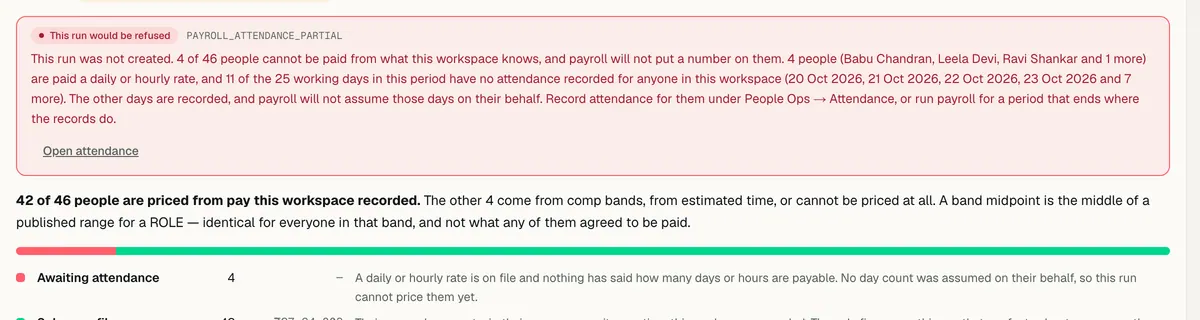
If the run would be refused, the panel says This run would be refused and names the people and the days. The main case: people paid a daily or hourly rate with no attendance recorded for days in the period. GrowthPPL won't assume a day count on their behalf.
Step 3: Fix what it names
Choose Open attendance and record the missing days under People Ops › Attendance, or use Upload attendance… in the run's preview. The check updates as the days are filled in.
Someone with no salary on file is named too: add their salary on their profile, or publish a band for their level under Compensation.
Step 4: Run payroll
Choose Run payroll. If you pay through more than one company, pick the Company being paid; pick the Pay period if more than one can be run. Before you run shows the people, gross, statutory deductions and net, then choose Run payroll.
The run is saved as the period's register. Nothing is sent anywhere and nobody is paid by GrowthPPL: the register is what you pay from. A period that a run already covers is refused, so the same days are never paid twice by accident.
Step 5: Approve it, if your workspace asks for a second person
Approval is off until someone with payroll approval ticks Every run waits for a second person's approval under Payroll › Settings. Then a saved run waits, and an approver chooses Approve or Send back… with a note. Whoever prepared a run can't approve it.
Step 6: Read the register
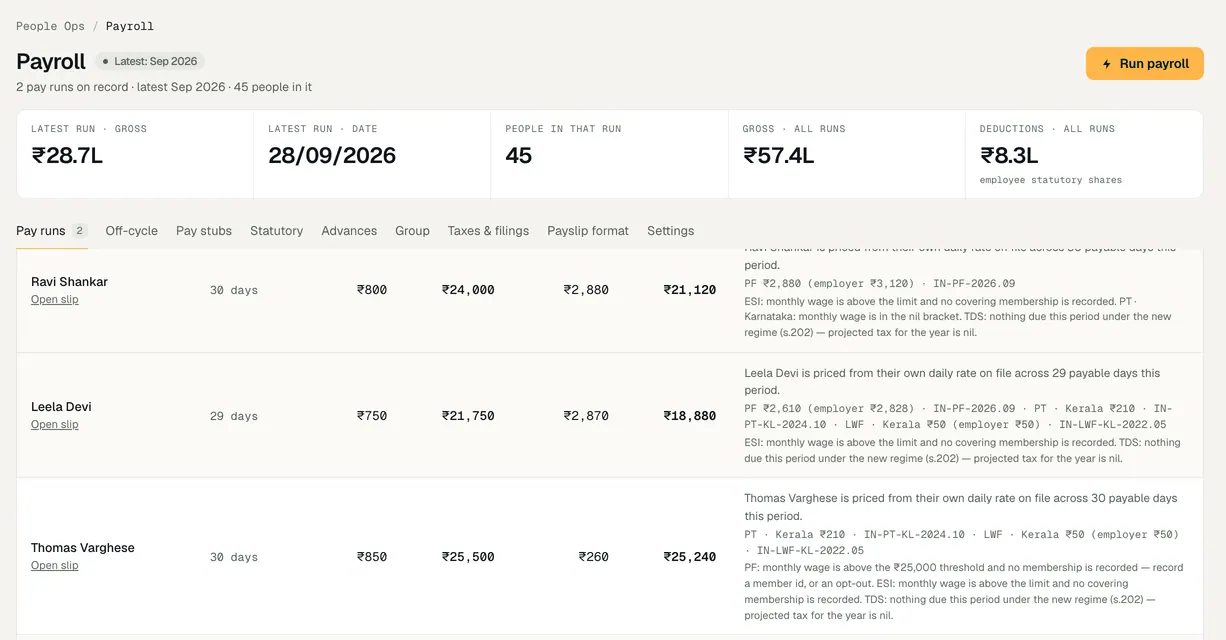
Choose Register on the run. Each line shows what the person was paid for, their rate, gross, deductions, net and why the figure is what it is; the challan summary shows each scheme's employee and employer shares and what to remit.
Step 7: Record the payment
Once you have paid people, choose Record payment and enter the day it was paid and a reference (a UTR, cheque or cash). That marks the run paid and its payslips final, and tells employees their payslip is ready.
Until then, a wrong run can be voided with a reason and run again. A paid run can't be voided: a change belongs in next month's run.


Demo workspace · fictional clinic group
What to check
- The run's status reads Calculated · not submitted until you record the payment, then Paid.
- The challan summary's registrations match the codes you enrolled with; a blank one reads — not recorded.
- Attendance on the days a saved run covers is now closed; a later correction goes into the next run.
Rule versions
This guide follows the India rules in force today, read from the same rule pack payroll uses (pack IN-2026.10.3). Each pay run records the version it used.
| Scheme | Rule version | Effective from | Last checked | Status |
|---|---|---|---|---|
| Employees' Provident Fund | IN-PF-2026.09Code on Social Security 2020 s.2(89): wage ceiling ₹25,000 a month for Chapter III (EPF, EPS, EDLI) by Notification S.O. 5109(E) of 17 Sep 2026, Ministry of Labour and Employment, F. No. R-12025/01/2026-SS-II (Gazette of India Extraordinary No. 4918), superseding S.O. 2702(E) of 29 May 2026. EPS 8.33% and EDLI 0.5% on wages up to ₹25,000 and rates unchanged per the EPFO FAQ (secondary quotes). Priced by the period's last day, so all of September 2026 is on ₹25,000 — the FAQ splits the month at the 17th. | 17 Sep 2026 | 12 Oct 2026 | Source checked |
| Employees' State Insurance | IN-ESI-2019.07ESI (Central) Amendment Rules 2019, G.S.R. 423(E); wage limit Rule 50 as amended 2016 (w.e.f. 1 Jan 2017) | 01 Jul 2019 | 06 Sep 2026 | Source checked |
| Income tax deducted at source | IN-TDS-2026.04Income-tax Act, 2025 (Act 30 of 2025) s.392, s.202, s.19, s.124, s.156; Finance Act 2026 (Act 4 of 2026) First Schedule Part III and s.3 — figures unchanged from 2025-26 (Finance Bill 2026 memorandum); Income-tax Rules, 2026 (G.S.R. 198(E), 20-03-2026) rr.205, 215, 219, 279 — Forms 124/130/138 and eight HRA metros. Rules read from a gazette facsimile; re-check against incometaxindia.gov.in. See output/audits/tds-2026-27/RESEARCH.md. | 01 Apr 2026 | 16 Oct 2026 | Review pending |
- Professional tax: a rule for each of 22 states, last checked 12 Oct 2026. Review pending 16 are marked for review.
- Labour welfare fund: a rule for each of 16 states, last checked 12 Oct 2026. Review pending 6 are marked for review.
Last reviewed
Try it on the demo workspace
We walk you through it on a workspace with fictional people, then set up yours with you.
Book a demo