Use the bulk salary sheet: download, edit, upload, undo
Change many people's pay at once from a spreadsheet: download it, type the new figures and start days, check the preview, apply. A whole upload can be undone until a pay run uses it.
Who can do thisSomeone who can open Compensation and edit employee records. Changing the salary rules from the sheet also needs compensation rights (or payroll rights when base pay is CTC). A limited login sees only its own people.
On this page
Before you start
- Everyone whose pay you are changing needs an employee code: the sheet matches rows by it.
- If base pay is CTC in your workspace, save the CTC structure under Compensation › Salary structure first. It decides how each CTC is split, and the preview refuses a CTC change without it.
- Check which pay runs are already saved. A change can't start inside a period whose pay run is saved.
Steps
Step 1: Open the salary sheet
Go to Compensation and open the Salary sheet tab. The Salary sheet (.xlsx) button at the top of Compensation opens the same tab.
Step 2: Download the sheet
Choose Download salary sheet (.xlsx). The workbook lists everyone you can change, with their pay now and the workspace's salary rules at the top, plus a How it works sheet with the rules below.
Grey columns (the split, gross, contributions and an estimated net) are a guide that works itself out in Excel, Google Sheets or Numbers. GrowthPPL works every figure out again when you upload; statutory contributions and tax always come from its own engine, never from the sheet.
Step 3: Type the new pay and the day it starts
For each person whose pay changes, type the new monthly figure in New monthly CTC (or New monthly gross, in a workspace that reads base pay as gross) and the day it starts in Effective from, as YYYY-MM-DD or DD/MM/YYYY. Leave a row blank to leave that person's pay as it is.
People paid by the day or the hour get their new rate in New day/hour rate instead; a rate starts from today and can't be scheduled ahead. Don't add, remove or rename the columns you type in, and leave Person key (don't edit) as it is.
Step 4: Upload it and read the preview
Drop the filled sheet on the card, or click to choose it (.xlsx, .ods or .csv). Nothing is saved yet: the preview shows how many rows change, how many stay the same and how many have a problem, with each figure shown as old → new.
Each row says why it can't go through, in words: an unknown employee code, a person who has left, a day before they joined, a day inside a saved pay run, or a figure more than twice (or under half) their pay that you should check. Use the Changes and Problems filters to read them.
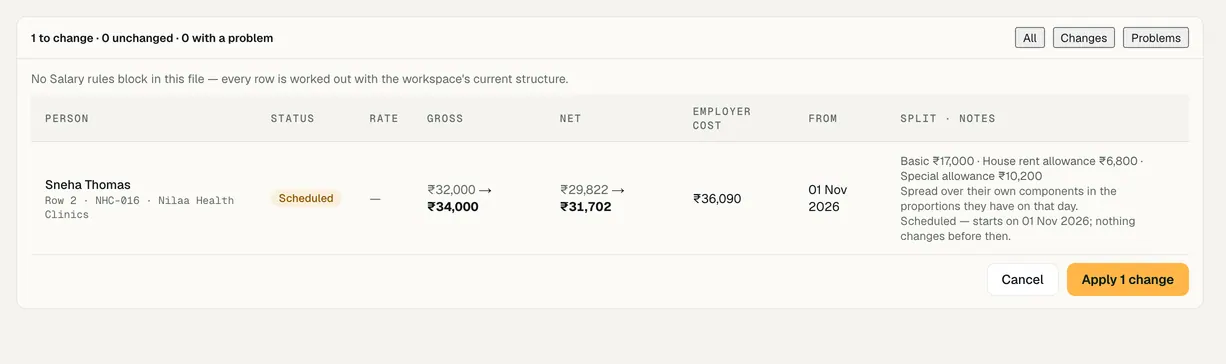
Step 5: Apply the changes
Choose Apply (the button names how many changes). A day in the future is scheduled and starts on its day; nothing changes before then. A day more than 12 months back is refused, and one upload changes at most 1,000 people.
If someone's pay, the salary structure or a pay run changed since your preview, the apply is refused and asks you to preview the sheet again, so nothing half-applies.
Step 6: Undo an upload if you need to
Choose Undo this upload straight after applying, or Undo next to it under Recent uploads. The whole upload is undone, never half of it.
Undo works until a pay run uses the upload. After that it is refused and names the pay run, and you change that person's pay by hand. It is also refused if someone's pay was changed again after the upload.

Demo workspace · fictional clinic group
What to check
- Recent uploads lists the file, who uploaded it and when, how many changed and how many were left out.
- A scheduled change shows its start day in the preview note, and the person's pay moves on that day, not before.
- Before the next pay run, open a changed person's profile and check the figure the run will use.
Last reviewed
Try it on the demo workspace
We walk you through it on a workspace with fictional people, then set up yours with you.
Book a demo