Require MFA by role and sign in with Google or Microsoft
Require two-factor sign-in with an authenticator app for the roles you choose, and let people sign in with the Google or Microsoft account that matches their GrowthPPL login.
Who can do thisOnly the workspace owner can require two-factor sign-in for a role or reset someone's. Anyone can turn it on for themselves.
On this page
Before you start
- Each person needs an authenticator app on their phone, such as Google Authenticator, Microsoft Authenticator or 1Password.
- Turn it on for yourself first, so you know the steps your team will see.
Steps
Step 1: Turn on two-factor sign-in for yourself
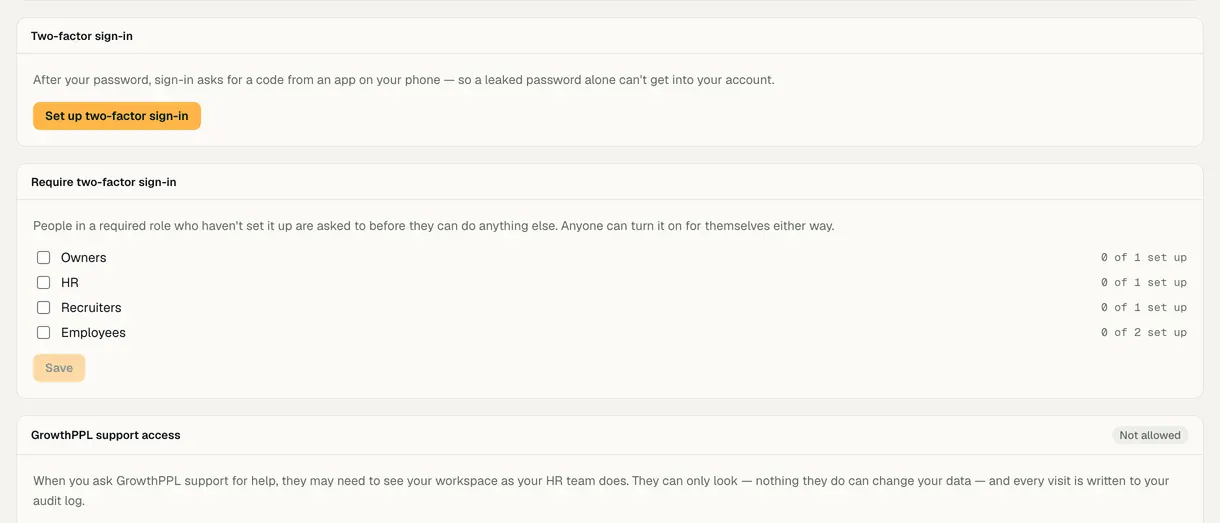
Open Settings, then the Security tab (or Your sign-in from your avatar), and choose Set up two-factor sign-in. Scan the code with your authenticator app, type the 6-digit code it shows, and choose Turn on.
Save the recovery codes it shows: each one signs you in once if you lose your phone, and they won't be shown again.
Step 2: Require it for the roles you choose
On the same tab, the owner sees Require two-factor sign-in. Tick the roles that must use it (Owners, HR, Recruiters, Employees); each shows how many of its logins have set it up. Choose Save.
People in a required role who haven't set it up are asked to before they can do anything else, and can't turn it off afterwards.
Step 3: Reset it when someone changes phones
Under Using two-factor sign-in, the owner chooses Reset next to the person. They sign in with their password and set it up again; their open sessions end, and they are told who reset it.
Step 4: Sign in with Google or Microsoft
When the sign-in page shows Continue with Google or Continue with Microsoft, a person can use that account instead of typing a password. There is nothing to switch on inside your workspace.
The provider's verified email address must match a login that already exists in GrowthPPL: it signs in to that login and never creates a new one. If two-factor sign-in is on, the code is still asked for.

Demo workspace · fictional clinic group
What to check
- The Require two-factor sign-in card shows each required role's count of logins set up.
- Someone in a required role without it sees Set up two-factor sign-in before anything else.
- An address with no GrowthPPL login is refused at the Google or Microsoft step with a message saying so; invite that address first.
Last reviewed
Try it on the demo workspace
We walk you through it on a workspace with fictional people, then set up yours with you.
Book a demo